

What Is SD Card Cloning?
SD card cloning is the process of creating an exact, bit-for-bit replica of one SD card onto another. Unlike simply copying files from one card to another — which only transfers visible files — cloning reproduces the entire card including the file system structure, partition table, boot records, and hidden data. The destination card becomes a perfect mirror of the source.
This distinction matters. When you copy files, you get the content but not the structure. A copied card may not boot a device, may lose hidden configuration files, and may not preserve the exact directory layout. A cloned card is functionally identical to the original in every way.
Why Clone Instead of Copy?
There are several scenarios where cloning is the only appropriate approach.
Bootable Media Distribution
If your SD card contains a bootable operating system — common in embedded devices, single-board computers, kiosks, and industrial equipment — copying files will not produce a working card. The boot record and partition structure must be preserved exactly. Cloning handles this automatically.
Firmware and Software Deployment
Manufacturers and IT departments that need to distribute identical firmware or software configurations across dozens or hundreds of devices rely on cloning to ensure every card is identical. This is standard practice in Canadian manufacturing facilities, automotive plants, and electronics production lines.
Data Backup and Disaster Recovery
Cloning preserves everything, including files you might not know exist. Hidden system files, recovery partitions, and configuration data are all captured. This makes cloned cards suitable for true disaster recovery scenarios.
Evidence Preservation
Canadian law enforcement and forensic investigators use cloning to create exact duplicates of SD cards found in digital devices. The clone serves as a working copy while the original is preserved as evidence. Forensic duplicators include write-protection on the source port to prevent any modification of the original card.
Hardware vs. Software: How to Clone an SD Card
There are two fundamental approaches to SD card cloning: software-based tools running on a computer, or standalone hardware duplicators. For Canadian organizations cloning cards at any volume, hardware duplicators are the clear choice.
| Feature | Software - Based Cloning | Hardware Duplicator |
| Computer Required | Yes - needs a PC or Mac with card | No - fully standalone operation |
| Speed | Limited by USB reader speed; typically | Up to 1.5 GB/min per card with direct hardware access |
| Multiple Cards | One card at a time (or two with dual readers( | Up to 39 cards simultaneously |
| Operating System | Requires Windows, Mac, or Linux; driver issues common | No OS needed — self-contained |
| Reliability | Depends on OS stability, driver compatibility, and reader quality | Consistent, repeatable results every time |
| Bootable Clones | Requires specific settings; often fails with certain partition types | Automatic — copies everything including boot sectors |
| Data Sanitization | Separate software required | Built-in DoD-compliant erase functions |
| Best For | One-off personal backups | Business, government, manufacturing, IT departments |
How Standalone SD Card Duplicators Work
A standalone SD card duplicator is a dedicated hardware device designed specifically for cloning storage media. U-Reach Canada offers SD and MicroSD duplicators ranging from compact 1-to-7 units to high-capacity 1-to-39 production systems.
The process is straightforward. Insert the source card into the designated source slot. Insert one or more blank destination cards into the target slots. Select the copy mode on the built-in LCD controller and press start. The duplicator reads the source card and writes identical copies to all target cards simultaneously. No computer, no software, no configuration required.
Copy Modes Explained
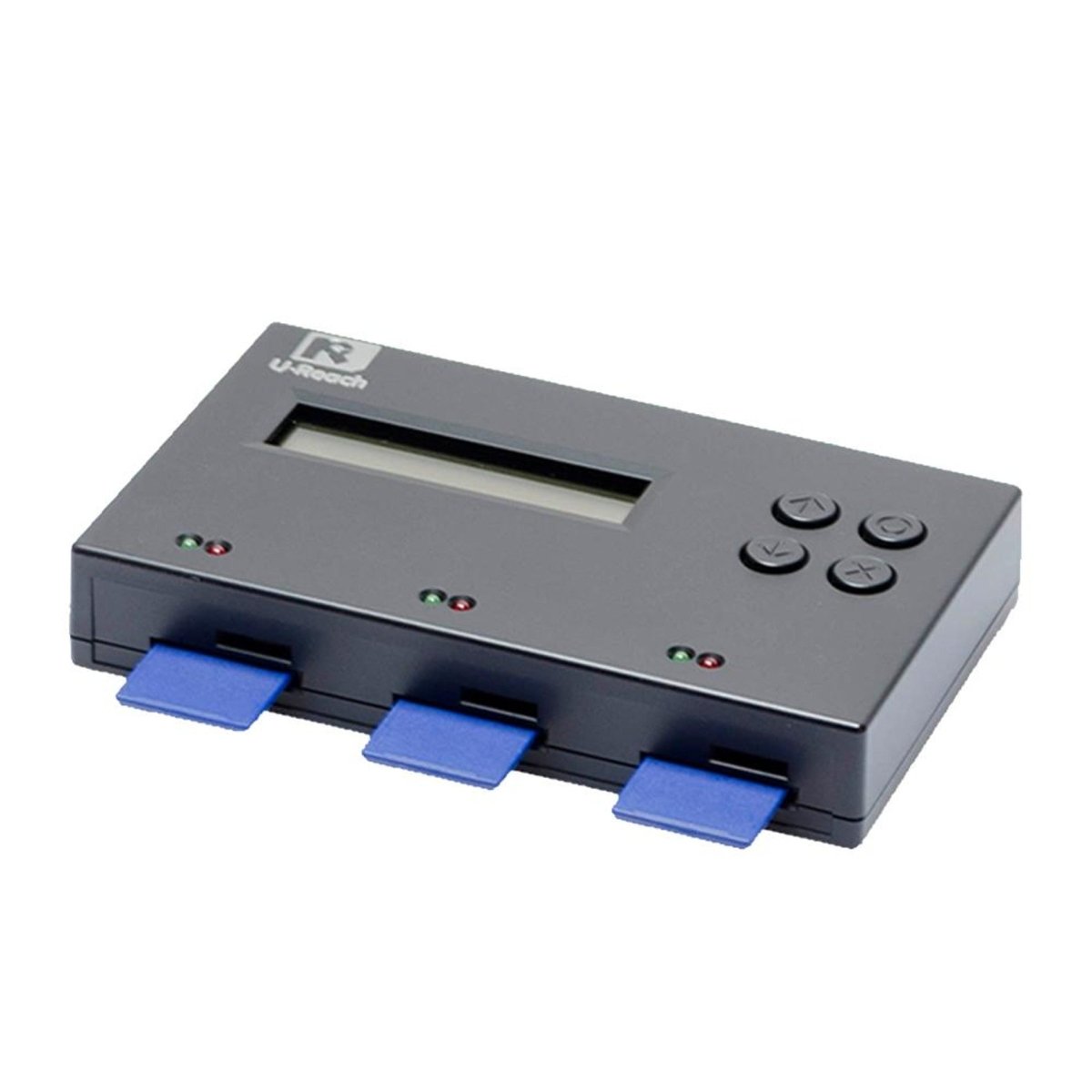
Whole Media Copy: Copies every sector of the source card to the destination, regardless of whether it contains data. This produces a perfect clone and is the recommended mode for bootable media, firmware distribution, and forensic work. Destination cards must be equal to or larger than the source.
Quick Copy (Systems and Files): Reads only the sectors that contain actual data, skipping empty space. This is significantly faster when the source card is not full and is suitable for simple data distribution where boot records are not critical.
Difference Copy: Only copies the sectors that differ between the source and destination. Ideal for updating cards that have already been cloned with a previous version.
Built-In Data Sanitization
Every U-Reach duplicator includes secure erase functions that overwrite destination cards before cloning, or wipe cards that are being retired. Erase modes include Quick Erase, Full Erase, and DoD-compliant multi-pass erasure. This means you can sanitize and clone with the same device — no separate equipment needed.
Choosing the Right SD Card Duplicator
The right duplicator depends on your volume requirements and the types of cards you work with.
| Volume | Recommended Model | Capacity | Key Features |
| Low (1-20 cards/day) | SD/MicroSD Series 1:7 | Clone 7 cards at once | Compact, portable, built-in sanitization |
| Medium (20-100 cards/day) | SD/MicroSD Series 1:15 | Clone 15 cards at once | LCD display, multiple copy modes, log output |
| High (100+ cards/day) | SD/MicroSD Series 1:23 or 1:39 | Clone 23-39 cards at once | Production-grade, fastest speeds, iSecuLog support |
SD vs. MicroSD Compatibility
U-Reach duplicators are available in SD card, MicroSD, and combo configurations. If you work with both form factors, combo models accept both SD and MicroSD cards without adapters. Using a MicroSD-to-SD adapter is also an option for SD-slot duplicators, though dedicated MicroSD slots provide better contact reliability for high-volume operations.
Step-by-Step: How to Clone an SD Card with a Duplicator
Step 1 — Power on the duplicator and wait for the main menu to appear on the LCD display. Step 2 — Insert your source SD card into the source slot (typically marked in a different colour or labelled "Source"). Step 3 — Insert blank destination cards into the target slots. You can fill as many or as few slots as needed. Step 4 — Navigate to the Copy function using the controller buttons. Select your preferred copy mode (Whole Media for exact clones, Quick Copy for data-only). Step 5 — Press Start. The duplicator will display progress, speed, and any errors in real time. Step 6 — When complete, the display will show pass/fail status for each target slot. Remove the cards — each one is now an exact clone of your source.
Common SD Card Cloning Questions
Can I clone a larger card to a smaller card?
Only if you use Quick Copy mode and the actual data on the source card fits within the destination card capacity. Whole Media Copy requires the destination to be equal to or larger than the source.
Will cloned cards work in my device?
Yes. A properly cloned card is bit-for-bit identical to the source. If the original card works in a device, the clone will too.
How fast is hardware cloning compared to USB readers?
Hardware duplicators access the card directly without USB overhead. Typical speeds are 1.0-1.5 GB per minute compared to 300-600 MB per minute through a USB reader, and you can clone multiple cards simultaneously.
Do I need to format destination cards before cloning?
No. The cloning process overwrites everything on the destination card. Pre-formatting is unnecessary.
Get Started with SD Card Cloning
U-Reach Canada offers a full range of SD and MicroSD duplicators for every volume requirement. All pricing is in Canadian dollars with shipping across Canada. Whether you are cloning cards for a manufacturing line in Ontario, distributing firmware for an embedded systems company in British Columbia, or backing up forensic evidence for a police service in Alberta, we have the right equipment for your operation.
Browse our SD/MicroSD Duplicators & Sanitizers or contact our Canadian support team at 877-987-3224 for a personalized recommendation